Introduction
AirPods have become a staple for seamless audio connectivity, offering not just quality sound but also convenience across various devices. While connecting to Apple devices is straightforward, you might find it tricky to pair them with non-Apple products like Dell laptops. This guide is crafted to help you connect your AirPods to your Dell laptop seamlessly. We will explore troubleshooting processes and ways to optimize your audio experience.

Understanding Compatibility
Before attempting to pair your AirPods with your Dell laptop, it is essential to ensure both devices are compatible. This preliminary step can save time and avert potential connectivity issues.
-
Checking Your Dell Laptop’s Bluetooth Capabilities: Begin by verifying that your Dell laptop supports Bluetooth. Most modern laptops come equipped with Bluetooth, but checking via settings or the device manager is a safe bet.
-
AirPods Model Compatibility with Dell Laptops: While AirPods are optimized for Apple, they are compatible with a range of Bluetooth devices, including Dell laptops. Ensure your AirPods are not an older model that may have compatibility issues.
Understanding compatibility builds a solid foundation for a successful connection and enhances the subsequent steps.
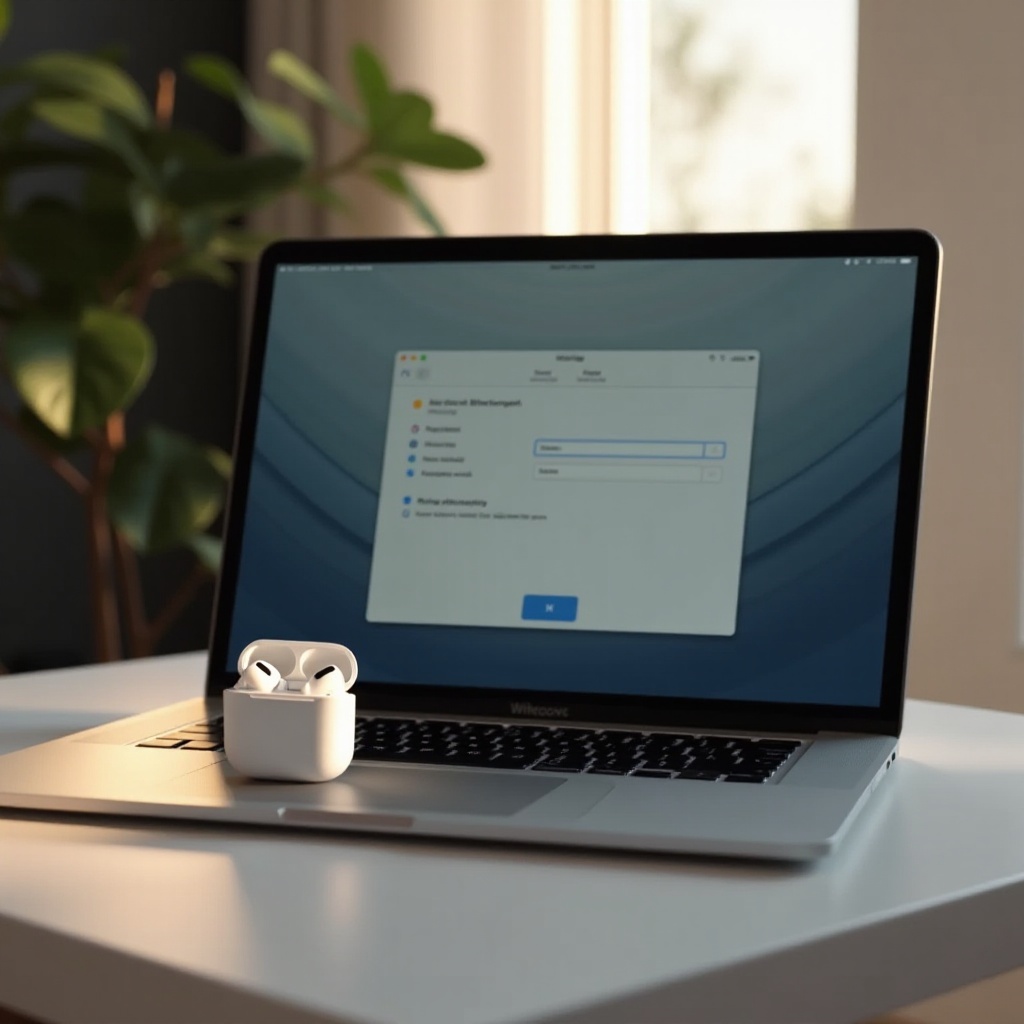
Step-by-Step Guide to Connecting AirPods to Dell Laptop
Getting your AirPods to connect with your Dell laptop is straightforward when following these steps:
-
Preparing Your AirPods for Pairing: Open your AirPods case without removing the AirPods. Press and hold the setup button on the back until the status light starts flashing white, indicating the AirPods are in pairing mode.
-
Enabling Bluetooth on Your Dell Laptop: Navigate to your laptop’s Settings. Select ‘Devices,’ then ‘Bluetooth & other devices.’ Ensure Bluetooth is enabled and click ‘Add Bluetooth or other device.
-
Pairing AirPods with Your Laptop: Choose ‘Bluetooth’ from the device options provided. Your Dell should detect the AirPods shortly. Click on your AirPods’ name to establish the connection.
By following these steps, you will connect your AirPods to your Dell laptop and be ready to enjoy a wireless audio experience seamlessly.
Troubleshooting Common Connection Issues
Should you encounter problems while connecting your AirPods to your Dell laptop, there are several troubleshooting avenues you can explore:
-
AirPods Not Detected by Laptop: Ensure the AirPods are in pairing mode and within proximity to the laptop. If issues persist, reset the AirPods by holding the setup button until the LED flashes amber and then white.
-
Resolving Connection Drops or Static: Connection interference can occur. Minimize such issues by relocating to a less crowded environment and ensuring no competing Bluetooth devices are nearby.
-
Improving Audio Quality: If you experience suboptimal audio quality, explore and adjust the sound settings under your Dell’s audio manager.
Addressing these problems can enhance your overall audio experience and facilitate uninterrupted listening.
Enhancing the User Experience
After successfully connecting your AirPods, these tips can help refine your user experience:
-
Customizing Sound Settings on Dell: Visit the sound settings to personalize your audio output, making adjustments to balance, bass, or microphone settings.
-
Managing AirPods Battery Life while Connected: Use your device’s battery widget to keep tabs on battery life. You can also adopt tactics like using a single AirPod to extend listening time.
These methods will not only improve your day-to-day use but also ensure longevity and optimal performance.
Advanced Tips for Seamless Connectivity
If you regularly switch between devices, the following tips may prove advantageous:
-
Switching Between Devices Efficiently: Manage connections efficiently by utilizing the Bluetooth menu. Disconnect and reconnect as needed directly from your device for a fluid transition.
-
Using AirPods Features on Windows: Remember to customize AirPods features like double-tap controls through an Apple device prior to connecting them with your Dell laptop.
Adopting these tips will make your connection journey smoother and allow you to enjoy the full range of AirPods features on your Dell laptop.
Conclusion
Successfully connecting AirPods to a Dell laptop is a matter of following simple yet effective steps. By ensuring you have examined compatibility and executed the pairing process correctly, you stand to avoid common connectivity issues. Diving into custom sound settings further elevates your listening experience. This guide enables you to enjoy flawless audio, combining the best of both your AirPods and Dell laptop.
Frequently Asked Questions
Why won’t my AirPods connect to my Dell laptop?
Ensure Bluetooth is enabled on both devices and they are in close range. Reset devices if issues persist.
Can I use AirPods as a microphone on my Dell laptop?
Yes, once connected, AirPods can function as a microphone, suitable for meetings and recordings.
How do I update Bluetooth drivers on my Dell laptop?
Access Device Manager, locate Bluetooth drivers, right-click and select ‘Update driver’ to complete the process.