Getting the most out of your AirPods’ volume capabilities can completely transform your audio experience. Whether you’re trying to catch every word in a bustling environment or you simply crave a more immersive sound, it’s essential to know how to adjust your AirPods through your iOS device’s settings. In this guide, we’ll explore techniques to help you maximize the loudness and quality of your AirPods sound.
Introduction
AirPods deliver a remarkable wireless experience; however, you might occasionally find their volume lacking. Many users frequently search for tips on how to make AirPods louder using settings. This guide aims to provide clear steps to enhance your AirPods volume through various settings on your iOS devices. Let’s get started with these straightforward instructions to unlock the full potential of your AirPods.
Basic Volume Adjustments
The journey to better volume for your AirPods begins with simple yet crucial adjustments that you might overlook.
-
Using Physical Volume Controls: The most straightforward way to adjust the volume on your AirPods is to use the physical volume buttons on your iPhone or iPad. By pressing the volume up button, you increase the sound instantly. For Apple Watch users listening through their AirPods, the digital crown can be used to adjust the volume easily.
-
Leveraging Siri for Volume Increase: Siri can efficiently manage your AirPods volume with voice commands. By activating Siri, either through voice or by pressing and holding the force sensor, you can ask to ‘turn up the volume’ or ‘set volume to [desired percentage].’ This approach provides a hands-free solution and precise control.
Once you’ve mastered these basic controls, you can explore more advanced iOS settings that provide additional control over your listening experience.
Adjusting Volume in iOS Settings
To fine-tune your audio experience further, utilize the built-in settings on iOS, designed to boost your AirPods’ volume safely and effectively.
-
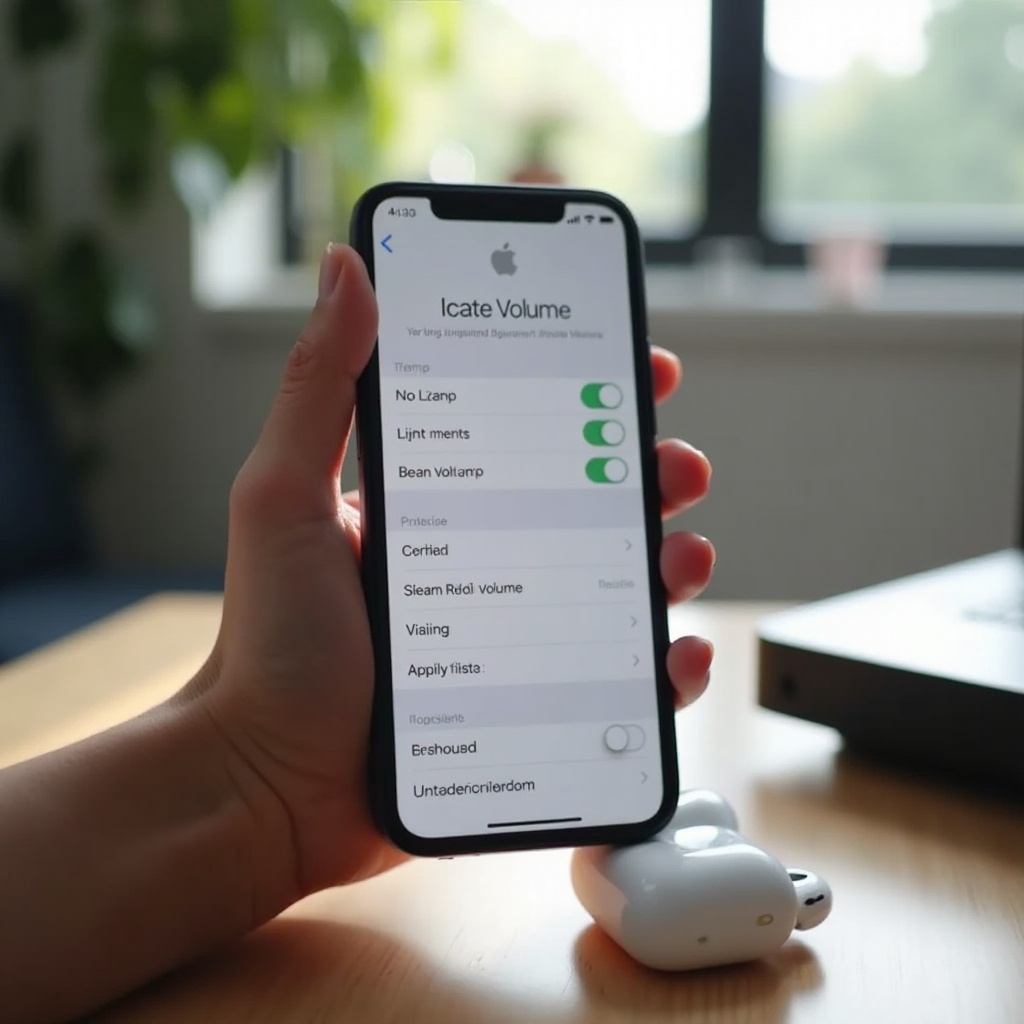
Setting the Volume Limit: iOS devices feature a Volume Limit option that allows you to cap maximum volume levels. To access this, navigate to Settings > Music > Volume Limit. Adjust this limit to ensure your AirPods reach their potential, but remember to keep volume at safe levels to protect your hearing.
-
Using the Control Center Effectively: The Control Center offers quick access to the volume slider for instantaneous adjustments. On newer iPhones, swipe down from the top right; on older models, swipe up from the bottom. This feature allows you to change volume settings without interrupting your current activity.
With these settings, you can achieve more targeted control of your AirPods’ volume. Let’s explore further customization options available through Accessibility Settings.
Enhancing Audio Through Accessibility Settings
Apple’s Accessibility Settings provide powerful tools to personalize and enhance your AirPods listening experience in a way that suits individual needs.
-
Enabling Hearing Accommodations: Go to Settings > Accessibility > Audio/Visual > Headphone Accommodations. You can enable and adjust audio tuning to amplify softer sounds and modify frequencies to your liking, which can make your AirPods louder while maintaining clarity.
-
Sound Balance Adjustments: In the same menu, you can balance audio between the left and right AirPods. If you have a preference or hearing disparity, configuring this setting ensures an optimal sound experience.
These accessibility settings offer a substantial upgrade to your sound quality. To further enhance your listening, consider optimized sound settings.
Optimizing Sound Quality Settings
Improving your AirPods’ sound quality involves utilizing iOS sound controls that offer a significant boost to audio performance.
-
Using the Equalizer (EQ) Options: Access Settings > Music > EQ to explore various EQ presets that can enhance audio output. Trying presets like ‘Loudness’ or ‘Bass Booster’ can help achieve your desired loudness and quality.
-
Enabling Sound Check for Consistent Volume: Sound Check standardizes the volume level across all your tracks. Turn this feature on in Settings > Music > Sound Check to ensure even playback levels, preventing unexpected fluctuations.
With these alterations, you can enjoy enhanced audio quality from your AirPods. When facing issues, troubleshooting might be necessary to keep your volume at its best.
Troubleshooting Common Volume Issues
Sometimes, you may encounter unexpected audio issues with your AirPods. Basic troubleshooting can help resolve these volume challenges effectively.
-
Checking Firmware and Software Updates: Verify that your iOS device and AirPods firmware are current. Visit Settings > General > Software Update on your device and Settings > Bluetooth > [Your AirPods] > About for firmware information. Updates often include improvements that enhance performance and volume.
-
Cleaning AirPods for Better Sound: Accumulated dust and debris in the speaker grilles can reduce sound quality. Regularly clean your AirPods using a soft, dry cloth to maintain optimal audio performance.
By employing these troubleshooting strategies, you’ll ensure your AirPods deliver the best possible audio experience.
Conclusion
Increasing the volume of your AirPods using various settings requires a combination of basic and advanced techniques. By incorporating the adjustments outlined in this guide, you’ll consistently unlock the full audio potential of your AirPods. Explore different settings to maximize your listening experience, ensuring clear and powerful sound every time you use them.
Frequently Asked Questions
How can I make my AirPods louder without changing settings?
You can increase the volume using your device’s volume buttons or by asking Siri to adjust the volume hands-free.
Why is the volume on my AirPods so low even at maximum?
Ensure your AirPods and iOS device have the latest updates and clean the AirPods to maintain optimal performance.
Do different apps affect AirPods volume differently?
Yes, some apps may have individual audio settings that affect the volume, leading to different loudness levels.