Introduction
Sonos has redefined what’s possible in home audio enhancement. With their range of speakers, enriching your TV viewing has never been easier or more effective. This guide will walk you through the steps of setting up Sonos speakers with your TV, ensuring top-notch audio performance that turns your living room into a cinematic experience.
Understanding Sonos Speakers
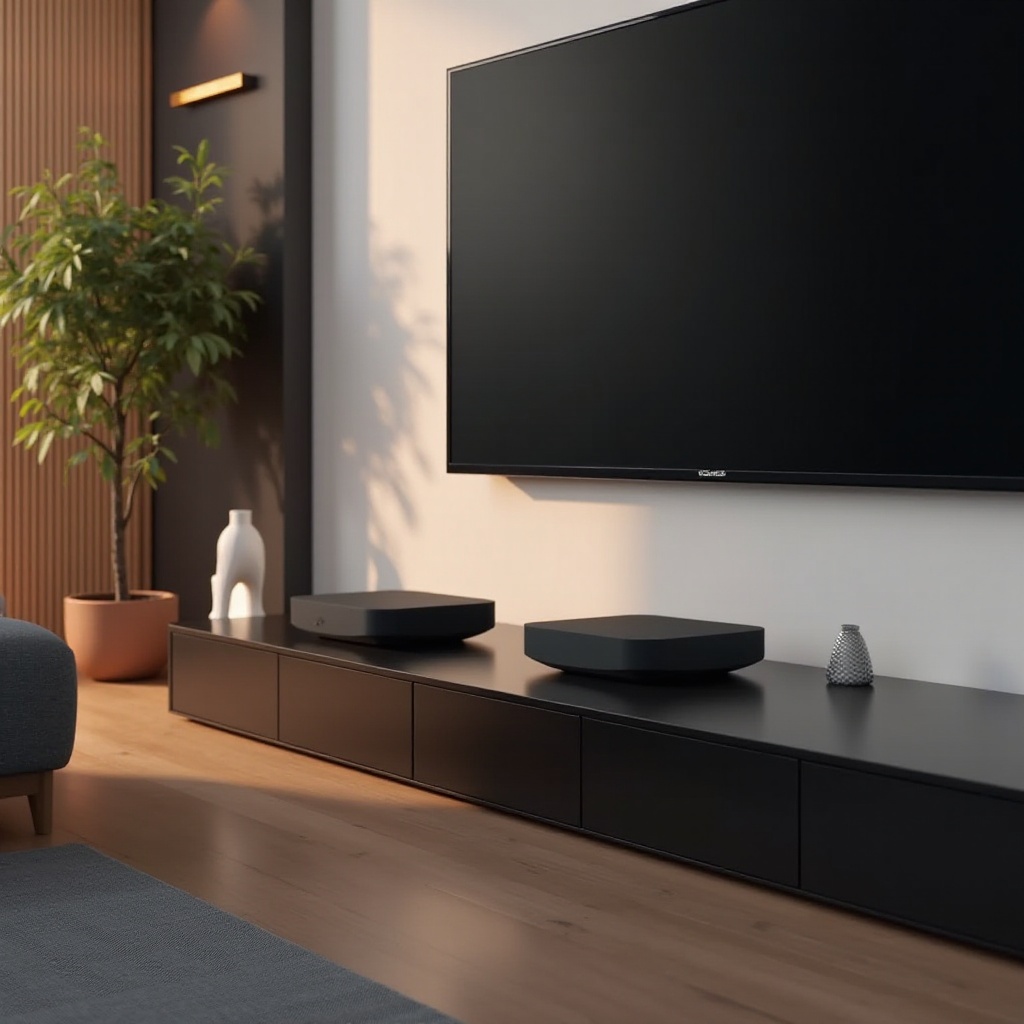
Sonos offers a variety of speaker models, each tailored to specific audio needs. The Sonos Beam and Sonos Arc are particularly suited for TV setups due to their superior sound quality and easy integration. Their ability to support multi-room configurations also allows you to build a fully immersive sound environment, transforming your entertainment landscape. Knowing the features and benefits of each Sonos model ensures you choose the right speaker for your setup.

Preparing for Your Sonos TV Setup
Before connecting your speakers, a bit of preparation goes a long way.
- Unboxing and Initial Setup: Start by carefully unboxing your Sonos speakers. Make sure all components are there and follow the quick start guide for basic installation instructions.
- Choosing the Right Placement: Correct placement can significantly impact sound quality. Mount your soundbar below the TV or place it on a TV cabinet for direct sound projection. Complementing the setup with rear or side speakers can create a robust surround experience for all viewers.
Connecting Sonos to Your TV
Connecting your system is straightforward and can be done either wired or wirelessly.
- Wired Connections Explained: HDMI ARC provides a reliable, high-quality connection. Connect one end of the cable to the TV and the other to the soundbar’s HDMI ARC port. If HDMI ARC is unavailable, an optical cable is an excellent alternative.
- Wireless Connections and Alternatives: Using the Sonos app, you can connect the speakers via Wi-Fi, allowing more flexibility in placement. This requires your TV to support either Bluetooth or Wi-Fi streaming capabilities, which the app will guide you through during the setup.
Configuring and Optimizing Audio Settings
With physical setup complete, optimizing settings is the next step.
- Navigating the Sonos App: The Sonos app is essential for customizing your audio settings. Download it and follow the instructions to connect your speakers to the TV, allowing you to manage sound preferences directly.
- Fine-Tuning Audio Performance: The app offers various settings such as EQ adjustments, helping you tailor the audio to specific content, whether it’s a blockbuster movie, a thrilling game, or a music session.

Troubleshooting Common Issues
Sometimes, issues can arise. However, they are generally easy to resolve.
- Solving Connectivity Problems: If connectivity falters, make sure all devices are on the same network. A simple router restart or resetting network settings can often solve these issues.
- Addressing Audio Lag and Sync Issues: Regular TV firmware updates and using the manual delay adjustments available in the Sonos app can help align audio playback perfectly with your video.
Conclusion
Setting up Sonos speakers with your TV opens a world of enhanced sound experiences. By following this guide, you should find the process intuitive and rewarding, yielding a sound system that elevates your home entertainment. Continue to tweak your setup for the best possible results, staying ahead with the latest software updates to maintain peak performance.
Frequently Asked Questions
Can I connect multiple Sonos speakers to my TV?
Yes, you can connect multiple speakers using the Sonos app to create a surround sound system.
What do I do if my Sonos app can’t find my TV?
Ensure all devices are on the same Wi-Fi network and restart your router or devices if necessary.
How do I update my Sonos system for optimal performance?
Regularly check for updates in the Sonos app under settings to ensure software is up-to-date.