The ESPN app has become essential for sports fans eager to watch live games and highlights right from their living rooms. Samsung smart TVs are known for their advanced technology and user-friendly interfaces, making them an ideal platform for streaming content. Let’s explore how you can maximize your sports streaming experience using the ESPN app on a Samsung TV.
Getting Started with the ESPN App on Samsung TV
To truly enjoy the full capabilities of the ESPN app, your Samsung TV must be compatible. Fortunately, most modern Samsung smart TVs support a wide range of applications, including ESPN, offering viewers a rich library of sports content.
-
Checking Your Samsung TV Compatibility: Confirm the compatibility of your Samsung TV with the ESPN app. Typically, models from 2016 onward have this capability. You can check your TV model number through its settings or the user manual.
-
Setting Up a Samsung Account: To download apps, a Samsung account is essential. If you haven’t created one yet, visit the Samsung account webpage or follow the prompts on your TV to get started.
-
Accessing the Samsung App Store: After you’ve set up your account, use the remote to navigate to the Samsung App Store located in the ‘Apps’ section of the main menu.
With your setup complete, you are ready to download and install the ESPN app, unlocking a gateway to exciting sports entertainment.
Installing the ESPN App: Step-by-Step Guide
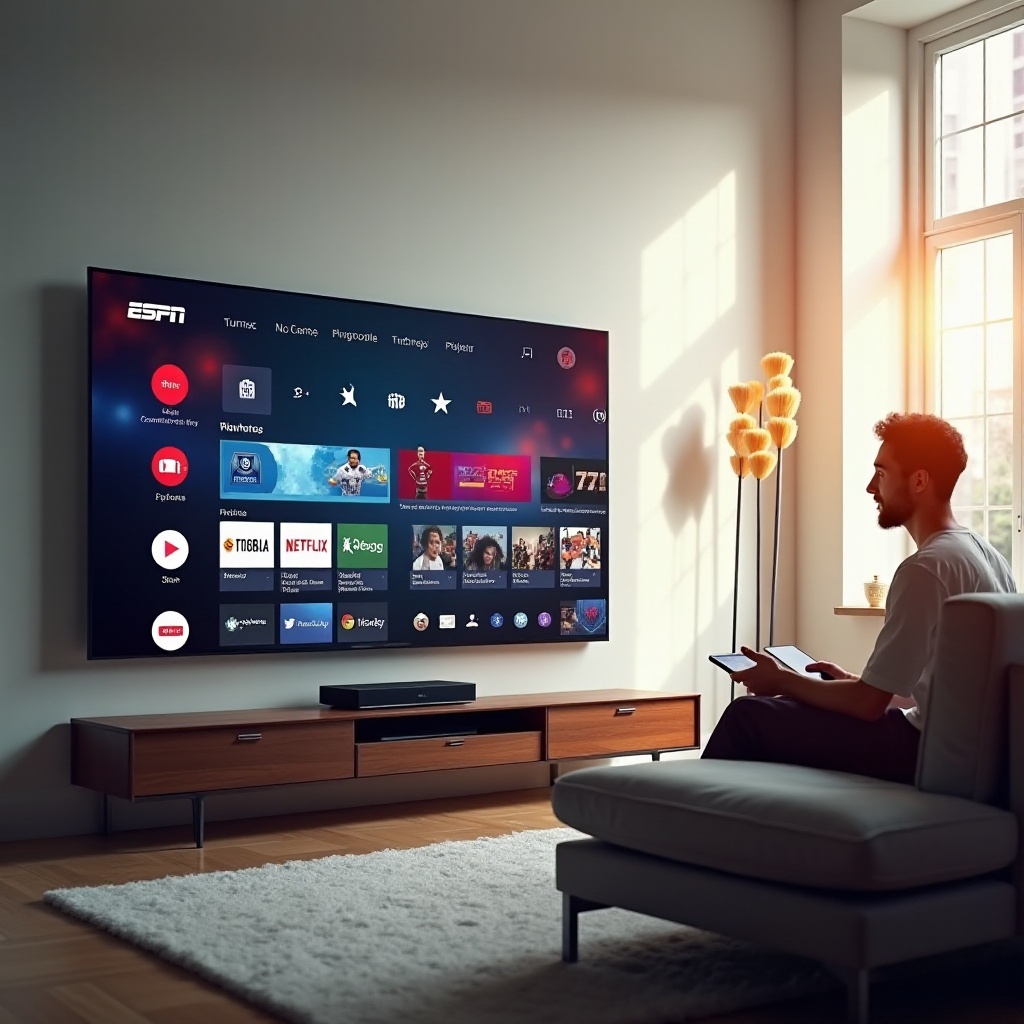
Once within the Samsung App Store, the process to locate the ESPN app is clear and intuitive:
-
Searching for the ESPN App: Use the search bar at the top of the app store screen and enter ‘ESPN’.
-
Downloading and Installing the App: Select the ESPN app from the results and click ‘Install’. The app will automatically download and install to your TV.
-
Account Setup and Login Procedure: Open the app, where you’ll need to log in or create an account. If you already possess an ESPN account or an ESPN+ subscription, simply enter your credentials. Otherwise, follow the app’s instructions to create an account and choose your streaming options.
With the app installed and your account configured, it’s time to dive into the myriad of features offered by the ESPN app and tailor your sports viewing to your liking.
Exploring ESPN App Features on Samsung TV
The ESPN app is loaded with features tailored to enhance your sports viewing, whether you’re a dedicated follower or a casual fan.
-
Live Streaming and Replays: Enjoy live coverage of games from major sports leagues or catch up with replays of events you missed. Navigate through the app’s user-friendly interface to find upcoming games or past events.
-
Customizing Notifications and Alerts: Set up personalized alerts for teams and sports of interest, ensuring you never miss crucial games or breaking news in the sports world.
-
Exploring ESPN+ Content: Subscribers to ESPN+ can access exclusive material such as documentaries, original programming, and additional live sports coverage.
Having understood the app’s features, optimizing the Samsung TV’s settings will further elevate your experience.
Optimizing Your Samsung TV for ESPN Streaming
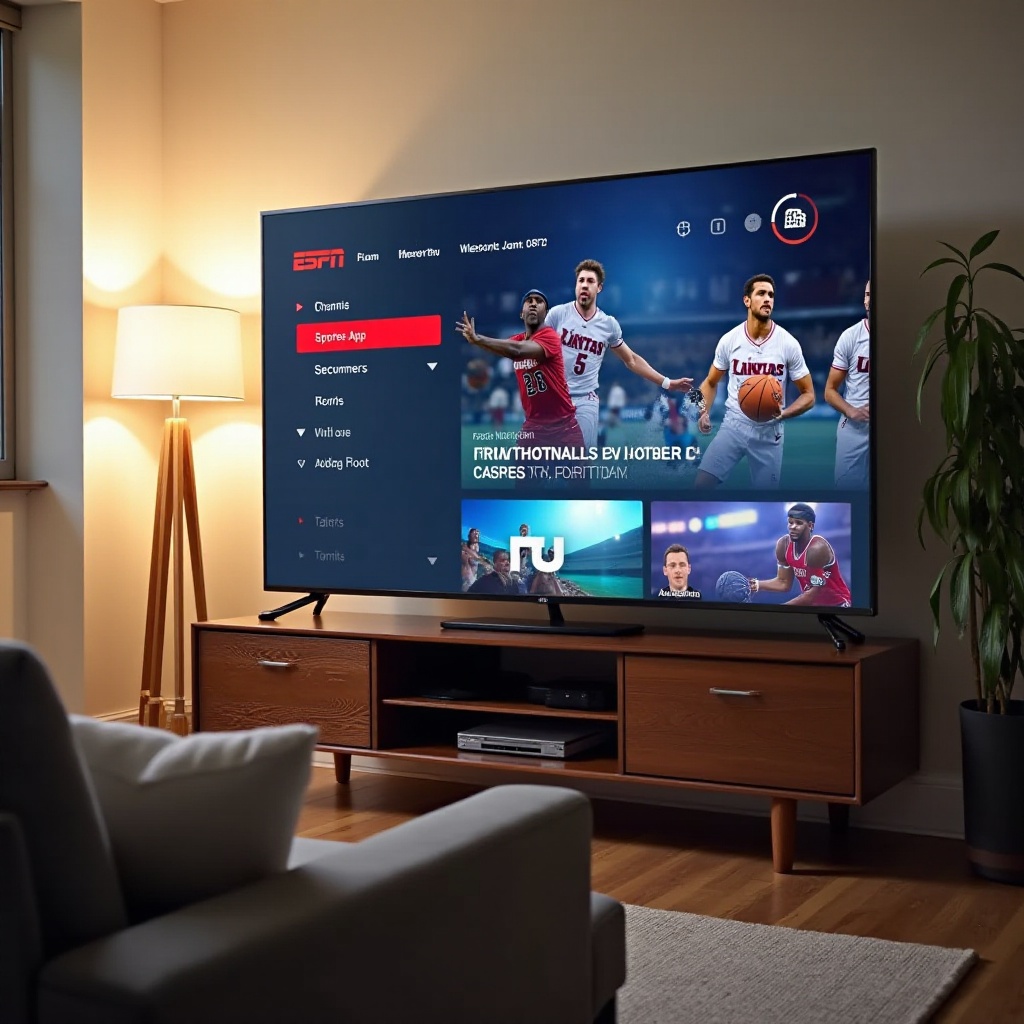
To fully immerse yourself in sports streaming, adjusting your TV settings can significantly enhance your experience:
-
Adjusting Picture Settings for Sports: Enter your TV menu and access picture settings. Engage ‘Sports Mode’ if available, to improve sharpness and motion clarity.
-
Setting Up Audio Enhancements: Amplify the excitement with surround sound or connect Bluetooth speakers for enhanced audio quality.
-
Utilizing Samsung’s Game Mode: Originally intended for gaming, Game Mode reduces input lag and can offer a smoother viewing experience during fast-paced sports events.
With the TV optimized, the viewing experience becomes not only exciting but truly engaging. While technology streamlines this process, occasional issues might still occur. Let’s address these challenges.
Troubleshooting Common ESPN App Issues
Despite optimal settings, technical challenges can occasionally disrupt your streaming. Here’s how to tackle them effectively:
-
Solving Buffering and Streaming Problems: For buffering issues, verify your internet connection’s stability. Restart your modem or relocate your router for a better signal. If needed, lower the streaming quality in app settings.
-
Resolving Login and Account Issues: Ensure that your login information is correct. For persistent issues, consider resetting your password via the app or ESPN website.
-
Fixing App Crashes and Freezing: Keep both the NFL app and TV software updated. If problems persist, uninstall and reinstall the ESPN app to clear potential glitches.
With these fixes in place, uninterrupted sports streaming awaits. To further enrich your experience, here are additional tips.
Enhancing Your Viewing Experience with Additional Tips
Consider these methods to maximize your enjoyment of the ESPN app:
-
Integrating with Other Streaming Devices: Use devices like Chromecast or Roku to stream ESPN content across various screens, offering flexibility and convenience.
-
Managing Your ESPN Subscription: Regularly review your subscription preferences to ensure you’re accessing content most relevant to your interests.
-
Keeping the App and TV Software Updated: Schedule regular updates for security and optimal performance. Enable automatic updates to always access the latest features and improvements.
With these enhancements, diving into the world of ESPN through your Samsung TV guarantees a comprehensive and enjoyable sports experience.

Conclusion
Integrating the ESPN app with your Samsung TV setup allows easy access to extensive sports content. By following this guide, you ensure a seamless and optimized viewing experience. Now, sports enthusiasts can sit back and revel in their favorite games, delivered with exceptional clarity and excitement.
Frequently Asked Questions
How do I update the ESPN App on my Samsung TV?
Access the app store, find the ESPN app, and select ‘Update’ if available.
Is ESPN+ available on all Samsung TV models?
Yes, as long as the TV supports the ESPN app, ESPN+ content is accessible.
What should I do if the ESPN App is not working properly?
Try restarting the app and your TV, check your internet connection, or reinstall the app if needed.