Introduction
AirPods are renowned for their top-notch sound quality and wireless convenience. Yet, users often face challenges when trying to connect them to Windows-based laptops like ThinkPads. This comprehensive guide will help you troubleshoot connectivity issues, ensuring that your AirPods pair seamlessly with your ThinkPad. We’ll cover essential compatibility insights, basic and advanced troubleshooting steps, and alternative solutions to manage your connection effectively.
Understanding Compatibility
Before troubleshooting, it’s essential to grasp the compatibility details between AirPods and ThinkPad laptops. AirPods are primarily designed for Apple devices but can connect to any Bluetooth-enabled device, including ThinkPads. However, issues may arise due to variations in Bluetooth technology and supported versions.
Your ThinkPad should ideally have Bluetooth 5.0 or above for optimal performance with AirPods. Understanding this compatibility ensures more effective problem-solving when faced with connectivity issues.
Initial Troubleshooting Steps
For connecting your AirPods to a ThinkPad, start with these simple troubleshooting steps:
-
Enable Bluetooth on ThinkPad: Verify that Bluetooth is turned on by navigating to ‘Settings > Devices > Bluetooth & other devices’ and allowing detection.
-
Verify AirPods Battery and Readiness: Ensure your AirPods are charged and ready for pairing. Low battery can disrupt the connection process.
-
Check for Existing Connections: AirPods may be connected to other devices. Make sure they are disconnected from other devices to allow connection to your ThinkPad.
These steps provide a foundational understanding of potential connection issues, paving the way for deeper troubleshooting.
Step-by-Step Connection Guide
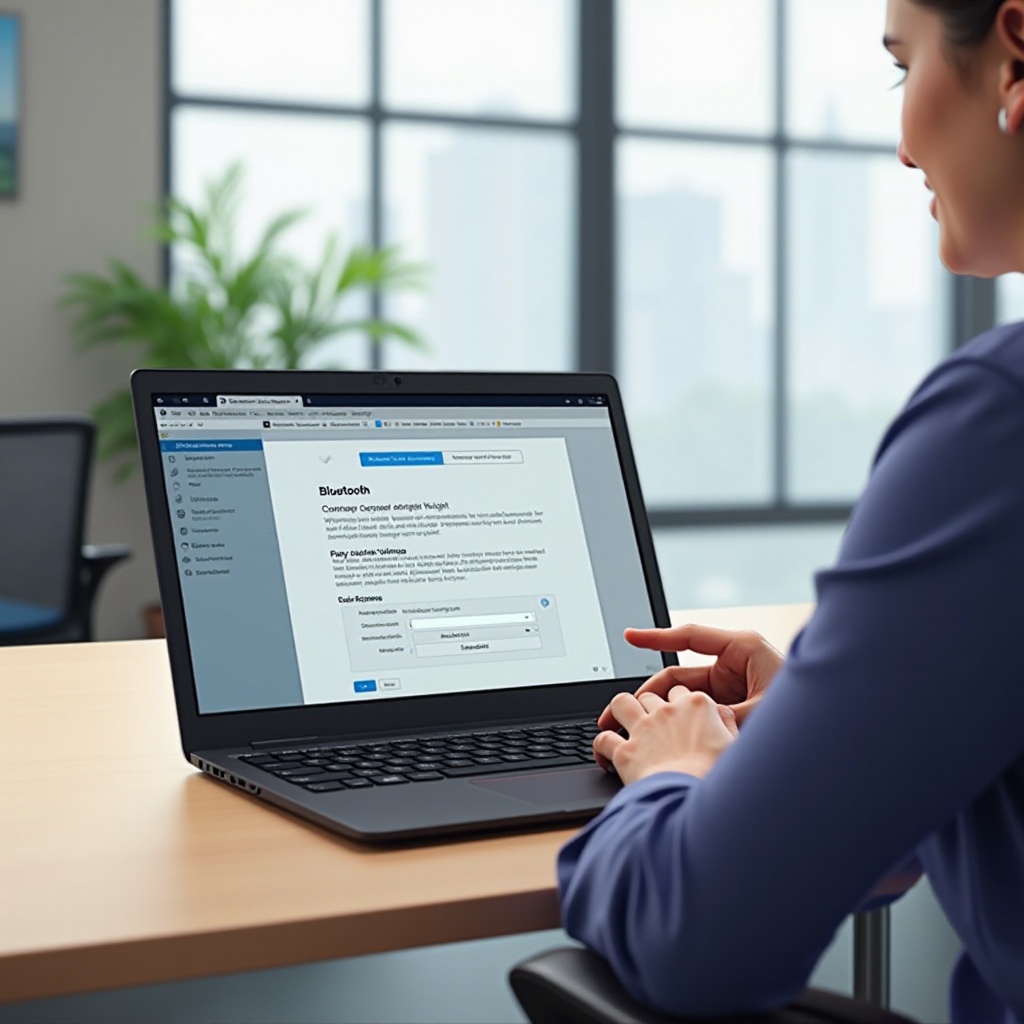
Following these steps should facilitate a successful connection between your devices:
- Enable Bluetooth and Visibility on ThinkPad:
- Navigate to ‘Settings’.
-
Click on ‘Devices’, then ‘Bluetooth & other devices’, and switch Bluetooth on.
-
Set AirPods to Pairing Mode:
- Open your AirPods case lid.
-
Press and hold the setup button on the back of the case; wait until the LED flashes white.
-
Connect AirPods via Windows Settings:
- In Bluetooth settings, select ‘Add Bluetooth or other device’.
- Choose ‘Bluetooth’, and wait for your AirPods to appear on the device list.
- Select them to connect.
Following these steps ensures a smooth connection process, setting up your devices correctly.
Advanced Troubleshooting Techniques
If the initial steps haven’t resolved your issues, deeper troubleshooting might be needed:
-
Update Bluetooth Drivers on ThinkPad: Check ‘Device Manager’ for Bluetooth driver updates and install them if available.
-
Reset Your AirPods:
- With AirPods in the case, keep the lid open.
-
Press and hold the setup button until the status light flashes amber, then white.
-
Check for Windows Updates Affecting Bluetooth: Make sure your Windows operating system is up-to-date, as updates can solve Bluetooth compatibility issues.
These advanced tips can aid in resolving more stubborn connection issues, often linked to software mismatches.
Optimizing Audio and Performance
To ensure the best experience post-connection, you can optimize your audio settings:
- Adjust Windows Sound Settings:
- Go to ‘Sound settings’ and ensure your AirPods are set as the default device.
-
Disable any sound enhancements for clearer audio.
-
Manage Sound Quality and Lag Issues: Test sound across different applications to confirm quality.
These adjustments will help you get the most out of your AirPods once connected.
Alternative Solutions
Persisting connectivity issues may require alternative approaches:
-
Bluetooth Adapters for Enhanced Connectivity: Consider using external Bluetooth adapters if the internal one fails.
-
Third-party Software for Better Pairing: Certain apps may support improved connectivity, providing broader device compatibility.
This additional layer of solutions enhances the connectivity prospects for AirPods and ThinkPad laptops.
Conclusion
Successfully connecting AirPods to a ThinkPad involves understanding compatibility, conducting thorough troubleshooting, and considering alternatives. This guide empowers you with the knowledge to solve connectivity issues effectively. Ensuring your devices are updated and configurations are correct will lead to an enjoyable, hassle-free audio experience.
Frequently Asked Questions
Why won’t my AirPods connect to my ThinkPad even after following the steps?
Ensure that your ThinkPad’s Bluetooth driver is updated, and Windows is current. Check for interference from other devices that might be causing connectivity issues.
Can I use AirPods with all ThinkPad models?
AirPods can generally be used with any Bluetooth-enabled ThinkPad. Compatibility may vary based on the Bluetooth version and drivers installed.
What should I do if the audio quality is poor after connection?
Adjust your sound settings in Windows, ensuring that all enhancements are disabled. Consider using external Bluetooth adapters or checking for device updates to improve audio quality.