How to Password Protect a PDF on Mac: A Comprehensive Guide
Securing digital documents is critical in today’s information-driven world, especially when sharing valuable PDF files electronically. With their widespread use, PDFs are often vulnerable to unauthorized access and potential data breaches. By password protecting these documents, you add a crucial layer of security to keep sensitive information confidential. Whether you’re managing business contract files or personal documents, knowing how to protect PDFs on a Mac is essential. This guide consists of detailed instructions and insightful tips, ensuring your digital data remains secure.
Why Password Protection is Important for PDFs
PDF password protection serves as a crucial defense against unauthorized access and potential data breaches. Sensitive details within PDFs can lead to privacy violations or identity theft if accessed by unintended parties. By encrypting PDFs, only those with authorized access can view, edit, or share the information. This is particularly essential for organizations that handle client data or internal documentation, helping avoid compliance breaches and maintaining privacy integrity. Password protection facilitates peace of mind and adherence to data protection standards, crucial for avoiding costly information leaks.
An understanding of the best methods for securing PDFs blends well with the importance of these actions. Once you’ve recognized the need for protection, learning how to secure your files effectively becomes the next step.
Methods to Password Protect a PDF on Mac
Several reliable methods can be employed to safeguard PDFs on a Mac, each with its distinct advantages depending on your needs:
Using Preview App
The Preview app, a built-in feature on Mac, provides an easy way to swiftly password-protect PDF files. Its simplicity and accessibility make it a go-to choice for many users.
Employing Adobe Acrobat
Adobe Acrobat is renowned for its comprehensive PDF handling capabilities, including advanced protection options, making it ideal for those frequently managing multiple secured PDFs.
Utilizing Third-Party Software
Numerous third-party tools offer powerful security functionalities for PDFs. These solutions often include batch processing and high-tech encryption modes for enhanced protection.
Having explored these options, let’s dive into how each method can be executed to ensure your PDF’s security on a Mac.
Step-by-Step: Password Protecting a PDF with Preview
The Preview app offers a simple method for protecting PDFs. Follow the following steps to secure your document:
- Open the PDF with the Preview app.
- Click ‘File’ in the top menu and choose ‘Export’.
- In the Export dialog, check ‘Encrypt’.
- Enter a strong password and confirm it.
- Decide where to save the protected file and click ‘Save’.
By following these steps, your PDF gains password protection, making it secure from unauthorized perusal.
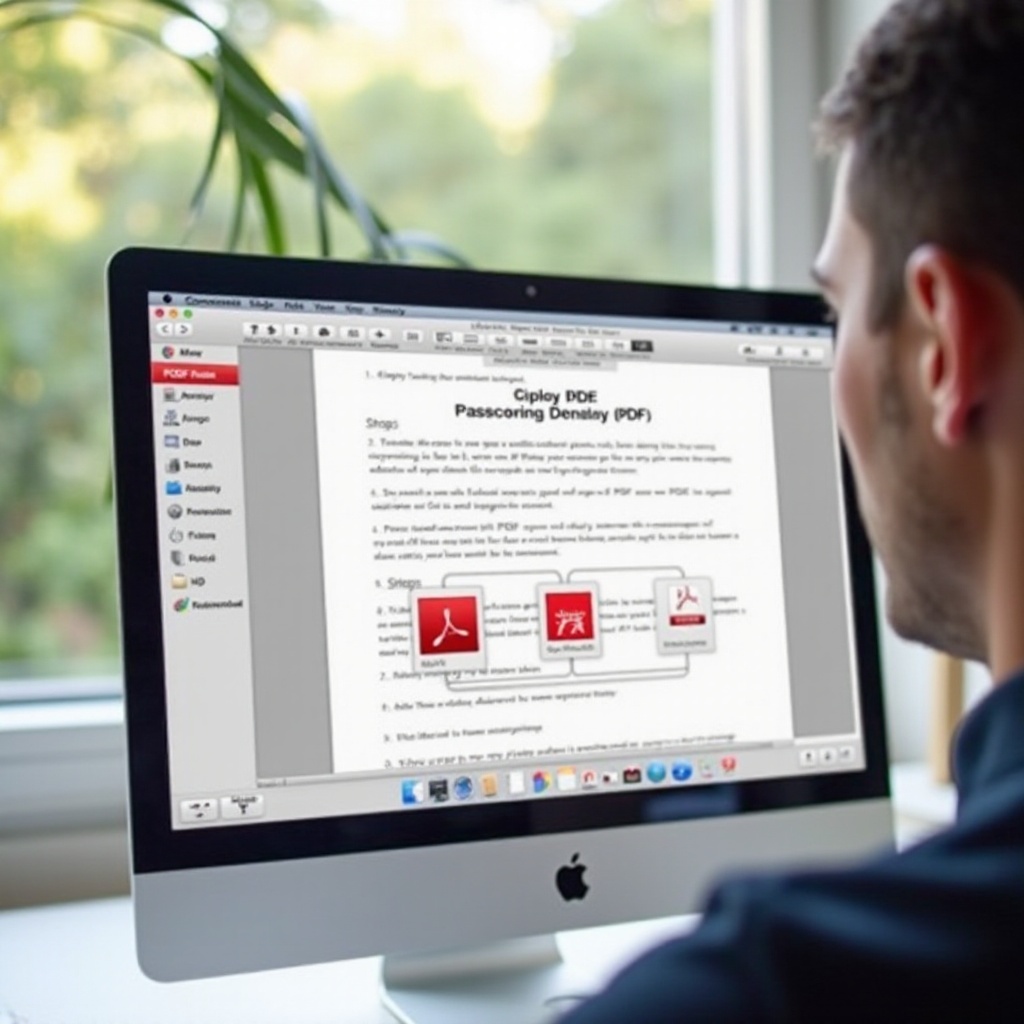
How to Use Adobe Acrobat for PDF Protection
Adobe Acrobat’s professional tools provide an effective way to add security to PDFs on Mac. Here’s how it can be done:
- Launch Adobe Acrobat and open your desired PDF.
- Navigate to ‘File’ and select ‘Protect Using Password’.
- Opt to restrict either viewing or editing permissions.
- Input a strong password and confirm it.
- Click ‘Apply’ for the changes to take effect.
Adobe Acrobat adds a reliable security layer to your documents, giving you confidence in their protection.
Best Third-Party Tools for Securing PDFs on Mac
For needs extending beyond standard tools, third-party software can offer tailored features for heightened protection.
Top Recommended Software
Tools such as PDF Expert, Foxit PhantomPDF, and PDFPen stand out for their unique security functionalities and user-oriented design, enabling easier document protection.
Features and Benefits
Common benefits of these tools include advanced encryption, batch processing capabilities, and the ability to manipulate PDFs beyond simple edits, attracting users with heavier security demands.
How to Implement Security
- Download and install your chosen software.
- Open the PDF within the software.
- Go to the security settings and set a robust password.
- Apply the changes.
These tools simplify the process tremendously, ensuring all your PDFs are substantially secured.
Best Practices for Password Creation and Management
Creating a tough password is pivotal for protecting PDF files. Consider the following best practices:
– Combine uppercase, lowercase, numbers, and symbols.
– Avoid common words, names, or predictable sequences.
– Aim for passwords that are at least 12 characters long.
– Utilize a password manager to safely store and manage your passwords.
Following these guidelines guarantees the highest level of security for your protected PDF files.
Troubleshooting Common Password Protection Issues
Despite best efforts, issues with password protection on PDFs can arise. Here are some common problems and their solutions:
- Forgotten Password: Use recovery tools or reference backups to regain access.
- Incorrect Password: Verify your input accuracy, including keyboard layout and Caps Lock.
- Inaccessible PDF: Ensure the file’s integrity by attempting to open it with different software if corrupted.
Addressing these hurdles ensures your PDFs remain accessible and secure, safeguarding your digital documentation consistently.
Conclusion
Password protection on a Mac is an invaluable skill, guarding your vital information against unauthorized access. With tools like Preview, Adobe Acrobat, and third-party applications, securing PDFs becomes a manageable task. Adopting robust password principles further enhances your documents’ safety. Whether for personal use or professional settings, establishing these protective measures prompts a proactive stance in digital security.
Frequently Asked Questions
How can I recover a forgotten PDF password on Mac?
Password recovery tools can assist in retrieving forgotten passwords. Ensure you have necessary backups or use recovery services designed for PDFs.
Are there free options available to password protect PDFs on Mac?
Yes, the Preview app on Mac offers a free way to add password protection to your PDFs without additional software.
What is the best way to ensure my PDF password is secure?
To ensure security, create a strong, unique password using a combination of characters, and store it safely using a password manager.